Your home Wi-Fi connects almost everything in your digital life. Your smartphone, laptop, smart TV, security cameras, gaming consoles and even some household appliances may all use the same network.
But have you ever checked whether your Wi-Fi is actually secure?
Many people install a router, connect their devices and never look at its security settings again.
Unfortunately, weak passwords, outdated software and unsafe router settings can make it easier for attackers to access your network.
The good news is that you don’t need to be a cybersecurity expert to improve your Wi-Fi security.
Here are 10 practical steps that can help protect your home or small-business network.
1. Understand What Your Router Actually Does
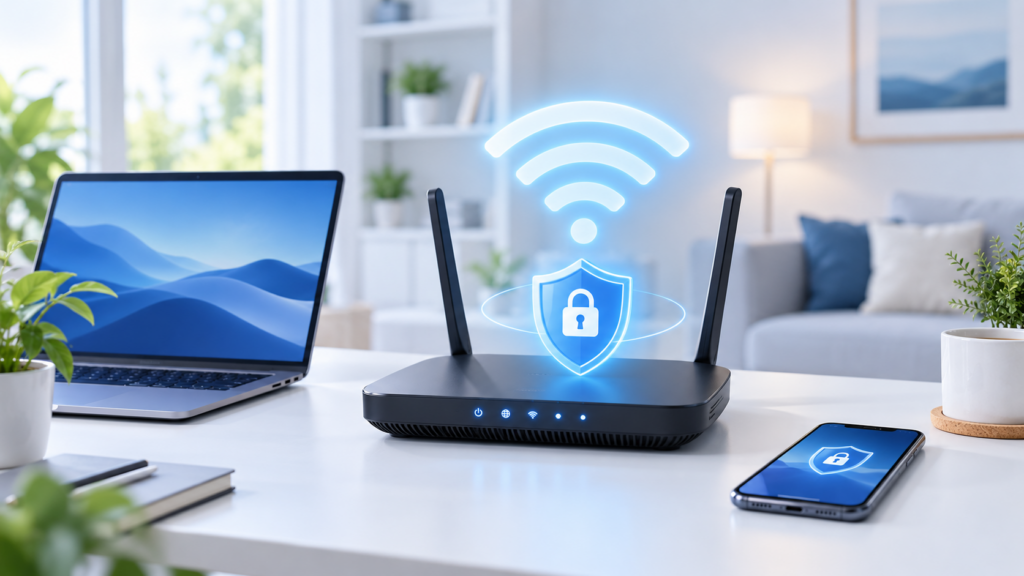
Your router is the device that connects your home network to the internet.
Think of it as the main entrance to your digital home.
When you watch a video, send an email or visit a website, your router helps move information between your devices and the internet.
It also helps control which connections can enter your network.
If someone compromises your router, they may be able to interfere with network traffic, change settings or attempt to attack connected devices.
That is why protecting your router is just as important as protecting your computer.
2. Change Your Router’s Administrator Password
Many routers have an administrator account used to change network settings.
This password is different from your normal Wi-Fi password.
For example:
Wi-Fi password: Used to connect your phone or laptop.
Administrator password: Used to change router settings.
Some routers come with default administrator credentials, while others use unique passwords.
If your router still uses a common default password, change it immediately.
Choose a long, unique password and store it securely in a password manager.
To access your router settings, use the manufacturer’s official application or follow the instructions provided with your router.
3. Create a Strong Wi-Fi Password
Your Wi-Fi password prevents unauthorised people from easily joining your wireless network.
Avoid passwords such as:
12345678password123Brisbane2026- Your phone number
- Your family name
Instead, choose a long, unpredictable password.
For example, a combination of several unrelated words can create a strong passphrase.
A password manager can also generate a random password.
Avoid sharing your main Wi-Fi password with people who do not need permanent access.
4. Use WPA3 or WPA2 Encryption
Encryption protects information travelling over your wireless connection.
Without appropriate encryption, nearby attackers may have more opportunities to intercept wireless traffic.
Modern routers usually offer different wireless security options.
WPA3-Personal is generally the strongest option for compatible home devices.
WPA2-Personal with AES remains an appropriate option when WPA3 is unavailable.
Avoid outdated security options such as WEP or the original WPA.
If your router offers WPA3/WPA2 compatibility mode, it may help older devices connect, although WPA3-only mode provides stronger protection when all devices support it.
The Australian Cyber Security Centre also recommends using the strongest available wireless encryption. Cyber.gov.au
5. Keep Your Router Updated
Your router runs software called firmware.
Like Windows, Android or iOS, router firmware can contain security weaknesses.
Manufacturers release updates to fix problems and improve security.
However, not every router installs these updates automatically.
Open your router’s settings and look for:
Firmware Update, Software Update or System Update.
Enable automatic updates if supported.
If your router no longer receives security updates, consider replacing it with a supported model.
An old router might still provide fast internet, but that does not necessarily mean it is secure.
6. Create a Separate Guest Wi-Fi Network
Imagine a friend visits your home and asks for your Wi-Fi password.
You might happily share it.
But what if their phone contains malware?
A guest network can help separate visitors’ devices from your main network.
For example:
Main network: Your computers, phones and important devices.
Guest network: Visitors’ phones and laptops.
Many routers also provide an option to prevent guest devices from accessing your main network.
Make sure this isolation feature is enabled, because simply naming a network “Guest” does not guarantee separation.
This feature can be particularly useful for small businesses that offer Wi-Fi to customers.
7. Disable Features You Don’t Need
Routers often contain features that make networking easier.
Unfortunately, some can also introduce unnecessary security risks.
Three settings worth reviewing are:
Remote management: Allows router administration from outside your home network.
WPS: Allows devices to connect using simplified pairing methods, sometimes including a PIN.
UPnP: Allows devices and applications to automatically request certain network connections.
If you do not need these features, consider disabling them.
Turning off UPnP may affect some gaming, video-calling or other applications, so check what your household needs before making changes.
Avoid opening internet-facing ports unless you understand why they are necessary.
The Australian Cyber Security Centre recommends disabling unnecessary remote-management features and UPnP to reduce exposure. Cyber.gov.au
8. Protect Smart Home Devices
Smart TVs, security cameras, speakers and smart doorbells can make life easier.
However, these devices are still computers connected to your network.
Some may have weak security settings or stop receiving updates after several years.
To reduce risks:
- Change default device passwords.
- Install available security updates.
- Disable unnecessary remote-access features.
- Remove devices you no longer use.
- Consider connecting smart devices to a separate network.
For example, a security camera does not necessarily need access to the laptop containing your financial documents.
Separating devices can help limit the damage if one becomes compromised.
9. Check Which Devices Are Connected
Do you know how many devices are connected to your Wi-Fi?
You might discover more than you expect.
Most routers provide a connected-device list.
It may show information such as:
Samsung Phone — Connected
Living Room TV — Connected
Unknown Device — Connected
An unfamiliar device does not automatically mean someone hacked your network.
Some devices use private or randomised network addresses, making them difficult to recognise.
However, if you discover a device that definitely does not belong to you, investigate it.
If necessary, change your Wi-Fi password and reconnect only trusted devices.
10. Review Your Network Security Regularly
Wi-Fi security is not something you should check only once.
New devices are added, passwords are shared and security updates become available.
Set aside a few minutes every few months to review your router.
Check whether its firmware is updated, whether unknown devices are connected and whether unnecessary features have been enabled.
If you run a small business, make sure someone is responsible for these checks.
You should also protect the computers and phones connected to your network.
A secure router cannot prevent every phishing scam, malicious download or stolen password.
Good cybersecurity requires protecting both your network and the devices using it.
What If You Think Someone Has Hacked Your Wi-Fi?
If you notice suspicious changes to your router settings, unexpected administrator accounts or devices you cannot identify, investigate promptly.
Start by accessing your router through a trusted device.
Review its administrator settings, connected devices and firmware version.
Change compromised passwords and remove unauthorised access.
If you have strong evidence that your router was compromised, you may need to perform a factory reset and configure it securely again.
Remember that a factory reset removes your existing settings and may interrupt your internet connection.
If you are unsure, contact your internet provider or a qualified IT professional.
Final Thoughts
Your home Wi-Fi is the foundation of your connected digital life.
Protecting it does not require expensive equipment or advanced technical knowledge.
Start with the basics:
Use strong passwords. Enable modern encryption. Keep your router updated. Separate guest devices. Disable unnecessary features.
These simple actions can make your network significantly harder to compromise.
Remember, cybersecurity is not only about protecting your passwords and online accounts.
It is also about protecting the network that connects everything together.
A safer digital world starts with a safer home network.
Further reading: For additional practical guidance, visit the Australian Cyber Security Centre’s guide to securing your devices and its personal cybersecurity guidance for router settings.